b-mobile user guide
A short guide to browsing, posting and getting notified on your Blipfoto journal from your Android phone.
1. Getting the app
b-mobile is free, with no ads and no in-app purchases. It will be available from Google Play; the b-mobile page will link to it when it is. It needs a phone running Android.
You can look around without an account. Sign in to see your own entries and the people you follow, and to post, star, favourite and comment.
2. Signing in
Open the menu (the three lines at the top left) and choose Accounts, then Add account, or tap Sign in if you aren't signed in. You sign in on Blipfoto's own sign-in page.
You choose what the app is allowed to do:
- Read-write (the default) lets you post, edit, star, favourite, comment, follow and report.
- Read-only lets you browse as yourself, including your followed journals, but not change anything. Buttons that need write access are hidden or ask you to switch.
The sign-in screen also offers Get notifications (see Notifications and reminders) and Use browser to sign in. If your usual browser is already signed in to Blipfoto, that is quickest. Turn it off to sign in inside the app instead, which always asks for your password.
3. Finding your way around
Everything is reached from the menu, opened with the button at the top left. The app opens on Browse.
-
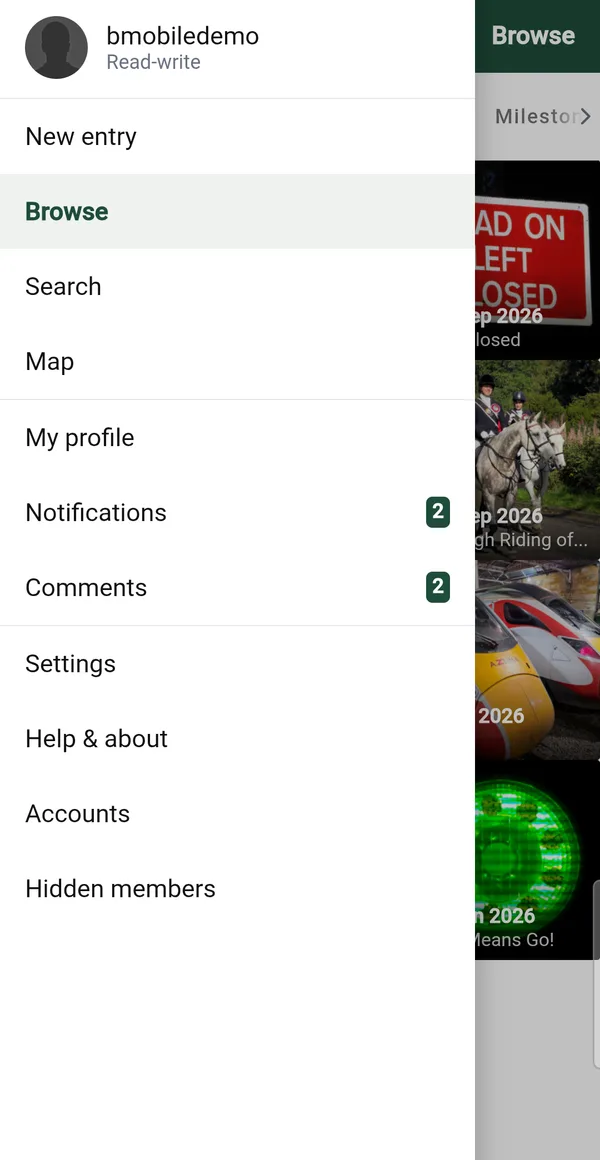
The menu
- New entry to post (read-write accounts only).
- Browse, Search and Map.
- My profile, Notifications and Comments, with a count of what's unread.
- Settings, Help & about, Accounts and Hidden members.
The Android Back button goes back one screen. On Browse it does nothing, so you can't leave the app by accident. An open menu closes first.
4. Browsing, searching and the map
-
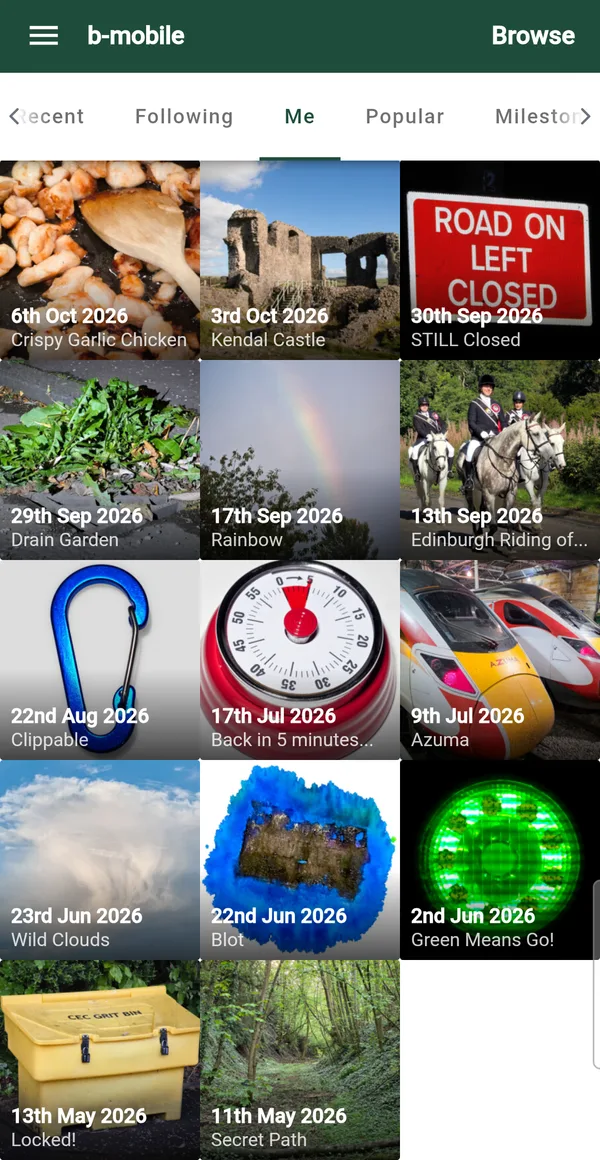
Browse
Browse has tabs along the top: Recent, Following and Me (when you are signed in), Popular, Milestones, New Blippers and Nearby. Swipe the tab bar to see them all. Tap a photo to open it.
- Me shows your own journal, with a calendar and your number of entries.
- Nearby needs your location. If you declined permission, use the Allow location button.
Search finds entries or people; results update as you type. Tags on an entry open a grid of every entry with that tag.
-
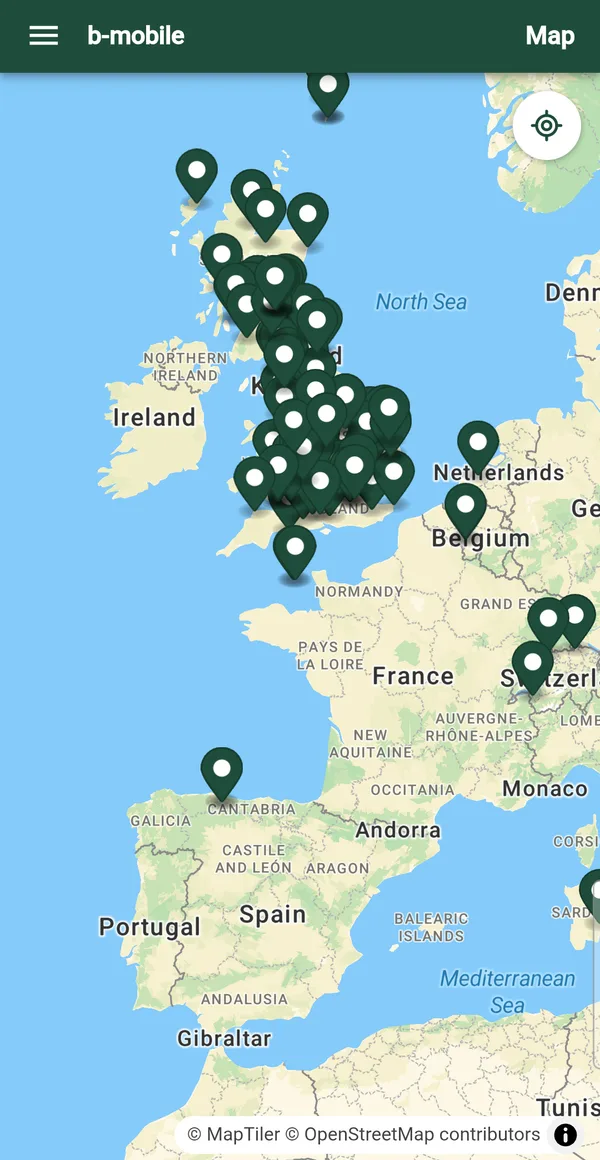
Map
Map shows blips that have a location. Pan and zoom, and entries for the area you are looking at load as you go. Tap a pin to open a preview of the entry, and use the crosshair button to jump to where you are.
5. Viewing an entry
-
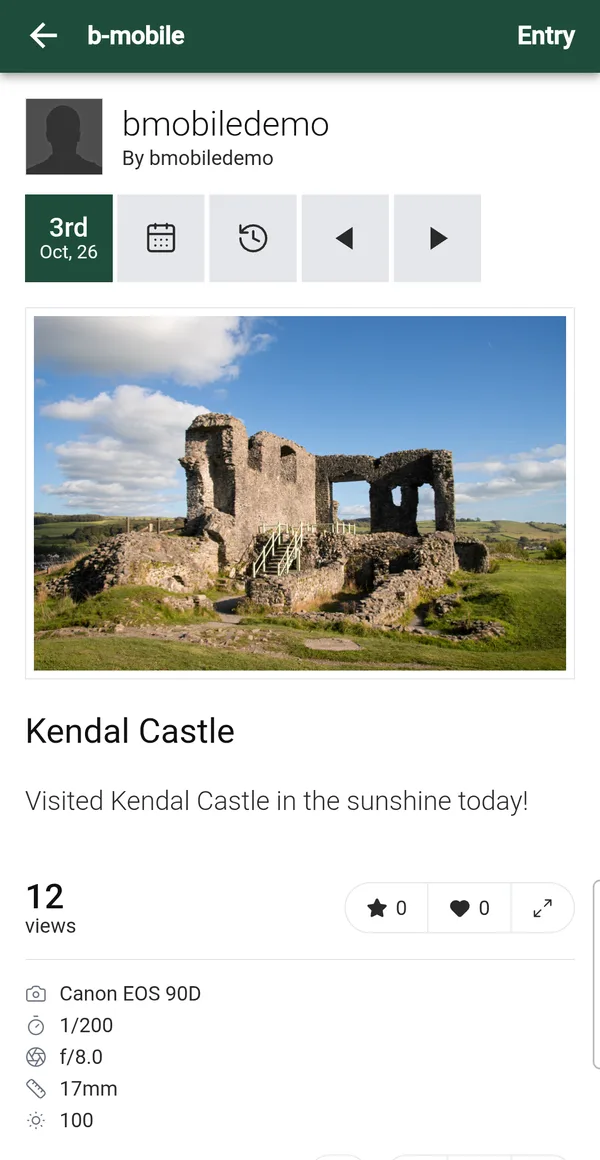
An entry
An entry shows the photo, title, description, tags and camera details, and its comments.
- Star and Favourite are one-way: once given they can't be taken back from the app.
- Write a comment, or reply to one. Text you've started typing is kept while you look around the app. You can edit or delete a comment where Blipfoto allows it.
- Follow the author from the author block.
- Use the arrows to go to the previous or next entry, the calendar to jump to a date, and the history button to see the same day in other years (these need you to be signed in).
- Tap the expand button, or double-tap the photo, for full screen, where you can zoom and pan.
- On your own entries you can download the photo at the size the app shows it.
If you are signed out, tapping star, favourite, comment or follow asks you to sign in first, and takes you back to the same place afterwards.
6. Posting a new entry
Choose New entry from the menu. You can take a photo or choose one from your gallery. You can also share a photo to b-mobile from another app.
- Pick the photo. It must be a JPEG or PNG, between 1 KB and 20 MB, with at least one side 600 pixels or longer.
- Add the details: a title (up to 50 characters), a description, tags, and, if you want, a location on the map. The date starts as the date the photo was taken, or today.
- Tap Publish. It is only available when the day is free: Blipfoto allows one entry per day, so the app tells you if you already have one for that date, or if the date is in the future or too far back.
Publishing doesn't wait for the upload. The photo goes into a queue, and the Uploads screen shows each item as Waiting, Uploading, Uploaded or Failed. On a poor connection b-mobile retries by itself, several times with longer gaps, and picks up where it left off if the app is closed and reopened. If an item does fail, it shows why, and you can Retry it or Remove it.
If you go back with unsaved changes the app asks whether to discard the entry.
7. Editing and deleting your entries
Open one of your own entries (read-write accounts only) and choose Edit. You can change the title, description, tags and location, and replace the photo. The date can't be changed. Saving returns you to the entry, which shows your changes with "Saving your changes…" until they have gone through. If a save fails, the entry shows what it was before and says so, and you can find the attempt in Uploads.
Delete entry is on the same screen, and asks you to confirm first.
8. Notifications and reminders
Notifications and Comments in the menu are your inboxes on Blipfoto. They show a badge with the number of unread items. Pull down to refresh.
You can also get phone notifications, which you choose per account in Settings → Notifications: one for new comments and one for new notifications. They are optional and off until you turn them on. Android will ask for permission, and for a read-write account the app asks you to sign in once more to allow it. A notification tells you how many new items there are (for example, "2 new comments"), not who they're from. It should arrive within about 5 minutes, and may take longer if your phone is saving battery. Tapping it opens the right inbox on the right account.
Daily reminder: in Settings → General you can ask for a reminder at a time you choose, for each read-write account. It is skipped on days you have already posted or edited an entry.
9. Using more than one account
Accounts lists every account you have signed in with, with its mode (read-only or read-write) and whether notifications are on. Tap one to switch to it; switching is instant. With two or more accounts, an account button appears at the top of the screen for quick switching.
- An account marked red needs you to sign in again. Tap it to do so.
- Use an account's menu to switch between read-only and read-write, or to Disconnect it, which signs it out of the app and cancels its notifications and queued uploads.
- By default the app asks which account to use before a star, favourite or comment, when you have more than one. You can turn that off in Settings.
10. Hiding members and reporting
Hide user removes a member from what you see: their entries show as a grey "hidden user" tile, their comments disappear, and they have no pin on the map. The list is kept on your phone only, shared by all your accounts, and never sent anywhere. Manage it from Hidden members in the menu, where you can unhide anyone.
Report is on entries, comments and profiles. With a read-write account you choose at least one reason, add a note if you like, and send it from the app. With a read-only or signed-out account the app explains that reporting needs read-write access. After reporting, it offers to hide the member.
11. Settings
Settings has two parts. The first is your Blipfoto account settings (General, Journal, Profile, Notifications and, for protected journals, Refused followers). They are saved with Save and Cancel and need you to be signed in. The second is settings for the app on this phone: accounts, the daily reminder, how account pictures look, whether blipfoto.com links open inside the app, and how Browse looks (zoom bar, pagination, margins and photo size). Phone settings take effect straight away.
12. What the app can't do
- Photos are standard size. Extra images and original-size downloads aren't available to apps like b-mobile, so it can't show or save them.
- Feeds have a limit. Each feed stops after a fixed number of entries. Recent, for example, ends at 900.
- Notifications are counts, not details, and should arrive within about 5 minutes (longer if your phone is saving battery).
- No offline mode. If a screen can't load, it shows the problem and a Retry button. Uploads you've queued are the exception: they wait for the connection and carry on.
13. Privacy and deleting your data
Read the b-mobile privacy policy for what the app handles and why. To remove your data, see Delete your data. Deleting your Blipfoto account itself is done on Blipfoto's website, in your Blipfoto account settings.
Found a problem, or something this guide gets wrong? Get in touch, or open an issue on GitHub.